Core knowledge · Chapter 8 of 69
Core Concepts
The fourteen ideas that make up Kiro, each in one paragraph with a link to its full page, plus permissions, checkpoints, compaction, and a surface matrix.
All levels 9 min read last reviewed 2026-10-21
◎ Learning objective
Recognize each of Kiro's core building blocks, know what job each one does, and find the page that covers it in depth.
Kiro is built from fourteen ideas, and every feature you will ever meet is some combination of them. This page is the map: one paragraph per concept with a link to the page that covers it properly, plus the four cross-cutting mechanics that apply everywhere.
The fourteen ideas
| Concept | In one line |
|---|---|
| Agentic development | The AI plans and performs multi-step work; you direct and review it |
| Specs | A written plan (requirements, design, tasks) before any code exists |
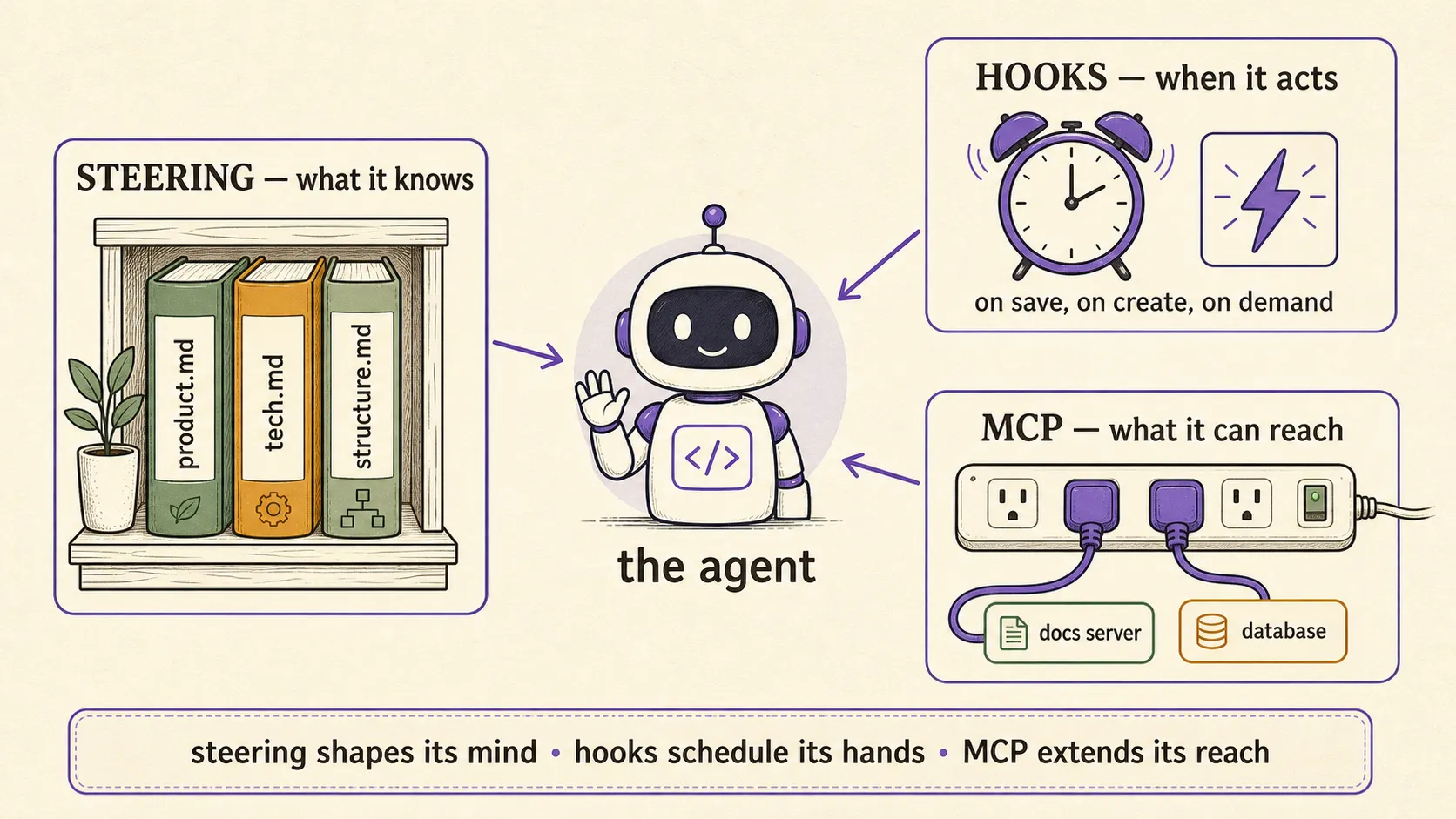
| Steering | Markdown files that give the agent permanent project knowledge |
| Memory | Context Kiro learns in one session and recalls in a later one |
| Hooks | When X happens, run an agent prompt or a shell command |
| MCP | The open protocol that connects the agent to external tools and data |
| Custom agents | Scoped personas with their own prompt, tools, and model |
| Skills | Reusable SKILL.md procedure packs, loaded on demand |
| Powers | MCP tools plus steering, bundled for one technology |
| Workflows | Multi-step agent plans that run in the background, each step in a fresh session |
| Cloud sessions | The agent running in a managed AWS sandbox any surface can attach to |
| IDE | The desktop editor, built on Code OSS |
| CLI | kiro-cli, the agent in your terminal |
| Web | app.kiro.dev, generally available since September 1, 2026 |
Kiro Crew, an open-source always-on agent that runs on your own hardware, is the fifth surface and has its own chapter.
Agentic development
Working with an AI that acts rather than only suggesting: given a goal, it plans steps, edits files, runs commands, checks results, and adjusts. One agent harness sits behind the IDE, CLI, Web, and mobile app, connected through the open Agent Client Protocol (Crew can use it or swap in another backend). You choose how much freedom it gets, from Supervised (approve each change) to Autopilot (end to end).
Read the full Agentic development page →
Specs
A spec is a written plan Kiro builds with you before building anything: requirements.md in EARS notation, design.md, and tasks.md, all stored in .kiro/specs/ in your repository. Bugfix specs use bugfix.md instead of requirements. Independent tasks execute concurrently in waves.
Steering
Markdown files that give Kiro persistent knowledge about your project, so you stop re-explaining your stack every session. Three foundational files (product.md, tech.md, structure.md) load by default from .kiro/steering/ or ~/.kiro/steering/, and inclusion modes control when the rest load. AGENTS.md files also count, nested anywhere in the tree, always included.
Memory
Context Kiro learns from your work, such as a repository’s commands, conventions, and corrections, and recalls in a later session so you stop repeating yourself. It arrived in CLI 2.29.0 (local V3 sessions) and IDE 1.4 in October 2026; in the IDE the Kiro Agent: Memory setting is Off until you choose a level. Memory is learned and per user, so rules that must always apply still belong in steering.
Hooks
Automations with the shape when X happens, do Y. Triggers include file save, create, and delete, prompt submission, agent turn complete, before and after tool invocations, before and after spec tasks, a CLI V3 session ending (SessionEnd), and manual buttons. Tool hooks can match a whole category such as shell, read, or write since October 2026. Project hooks live in .kiro/hooks/, global ones in ~/.kiro/hooks/.
MCP
Model Context Protocol is how Kiro reaches the world outside your code. Servers are configured in .kiro/settings/mcp.json or ~/.kiro/settings/mcp.json, with precedence running agent, then project, then global. Approve tools deliberately: autoApprove means the agent calls them without asking.
CLI
kiro-cli runs the same agent in your terminal, with the full primitive set, and it is the surface that works over SSH, in containers, and in headless CI with KIRO_API_KEY. kiro-cli acp also exposes Kiro to JetBrains and Zed.
IDE
A desktop editor built on Code OSS with the agent woven in: chat with Autopilot and Supervised modes, the specs experience, steering and hook panels, MCP management, visual diffs, and Agent Focus. Since v1.0.395 third-party extensions work alongside Kiro, and v1.0.437 added cloud configuration previews. v1.1 (September 14, 2026) added Agent Artifacts, the durable outputs an agent leaves you rather than burying in chat, plus native ARM64 builds for Windows and Linux and a move to Code OSS 1.131.
Web
app.kiro.dev runs the agent against GitHub and GitLab repositories with nothing installed. It reached general availability on September 1, 2026, on Pro and above, with Automations, autonomous mode, Memory, branch selection, and configuration sync down to local sessions.
Cloud sessions
The agent runs in a managed AWS sandbox instead of on your laptop, and the session belongs to your account rather than to one app. The IDE, CLI, Web, and mobile app all attach to the same session. Paid plans, at most 10 concurrent, no Supervised mode, and repositories chosen when the session starts (Web can pick a branch).
Read the full Cloud sessions page →
Custom agents
Scoped versions of Kiro with their own instructions, tools, resources, and model. The CLI uses JSON, the IDE Markdown with YAML front matter, both from .kiro/agents/ or ~/.kiro/agents/. The tools field takes categories: read, write, shell, web, @builtin.
Read the full Custom agents page →
Skills
Reusable instruction packs: a folder with a SKILL.md, front matter naming and describing it, then the procedure. Kiro reads only names and descriptions at session start and loads the body when a request matches. Workspace skills live in .kiro/skills/, personal ones in ~/.kiro/skills/.
Powers
One-click bundles that make the agent good at a specific technology: a POWER.md steering file, an MCP server configuration, and optionally hooks. They load on demand, so specialized tools do not sit in context all session. Packaged in the open Agent Plugin format since IDE v1.0.288.
Workflows
A reusable plan for a team of agents: steps, loops, parallel branches, and waits that Kiro’s runtime executes in the background while you keep working in the main chat. Each step runs in its own session with fresh context, so a reviewer judges the work without inheriting the coder’s reasoning. Kiro proposes a workflow for the task you describe, or you save one as a JSON or YAML recipe in .kiro/workflows/; investigate, feature-pipeline, and publish-pr ship with Kiro. Opt-in since September 30, 2026 in the IDE (1.2), CLI V3 (2.26.0), and Web. Not the same as Kiro Crew’s Python Workflows.
Read the full Workflows page →
How the pieces fit together
- Specs decide what gets built.
- Steering shapes how the agent thinks about your project, and memory keeps what it learned last time.
- Hooks decide when the agent acts without being asked.
- MCP and powers extend what the agent can reach.
- Custom agents and skills package who the agent is and what it knows how to do.
- Workflows decide in what order, and by which agents, multi-step work runs.
- IDE, CLI, Web, mobile, and Crew are just where all of this happens.
- Cloud sessions decide whose machine runs it: yours, or an AWS sandbox the others attach to.
Permissions, checkpoints, compaction, .kiroignore
Permissions are capability-based. Twelve capabilities (fs_read, fs_write, shell, web_fetch, web_search, mcp, subagent, skill, power, context, diagnostics, sandbox_network) plus the meta names all, builtin, and filesystem. Effects rank deny > ask > allow, and deny always wins regardless of scope. Rules live in ~/.kiro/settings/permissions.yaml and ~/.kiro/workspace-roots/<hash>/permissions.yaml, across six scopes: Kiro’s own defaults, administration, user, workspace, agent, and session.
Checkpoints are created automatically on every prompt and snapshot the files the agent changed with its built-in tools. Restoring returns those files and the agent context and discards the later chat. Only built-in file-tool edits are tracked, so manual edits, formatters, MCP writes, and shell commands are not. Rewind, which forks a conversation at an earlier turn into a new session without touching files, is CLI-only.
Compaction summarizes older history when the context fills, automatically on every surface. The manual /compact trigger exists only in the CLI (see the CLI guide). It keeps task status, file paths, decisions, and next steps, and summarizes tool output, old code, and resolved errors. It is one-way: history before the compaction point is not recoverable. Two CLI settings tune it, compaction.excludeMessages and compaction.excludeContextWindowPercent, both defaulting to 2, with the more conservative winning.
.kiroignore keeps paths out of the agent’s reach. A workspace .kiroignore works at the root or in subdirectories, ~/.kiro/settings/kiroignore applies globally, and the IDE adds a kiroAgent.agentIgnoreFiles setting. It uses gitignore syntax including negation, though you cannot re-include a file inside an excluded directory, and it respects git’s core.excludesfile.
Which surface has what
Confirmed against Kiro’s documentation on September 4, 2026; the Workflows row on October 4, 2026; the Memory and sandbox rows on October 21, 2026. “See docs” means this site has not verified that cell, not that the answer is no.
| Feature | IDE | CLI | Web | Mobile | Crew |
|---|---|---|---|---|---|
| Specs | Yes | Yes (V3) | Yes | See docs | See docs |
| Steering | Yes | Yes | Yes | See docs | Yes |
| Hooks | Yes | Yes | Yes | See docs | Yes |
| MCP | Yes | Yes | Yes | See docs | Yes |
| Custom agents | Yes | Yes | Yes | See docs | Yes |
| Skills | Yes | Yes | Yes | See docs | Yes |
| Powers | Yes | Yes | Yes | See docs | See docs (Apps instead) |
| Cloud sessions | Yes (v1.0.293+) | Yes (v2.17+) | Yes | Yes | See docs |
| Checkpoints | Yes | Experimental (V3) | No | No | Snapshot and restore |
Manual compaction (/compact) | No | Yes | No | No | See docs |
.kiroignore | Full | V3 search results only | Not yet | Not yet | See docs |
| Workflows | Yes (1.2+, opt-in) | Yes (V3, 2.26.0+, opt-in) | Yes (opt-in) | See docs | Separate Python Workflows |
| Memory (learned across sessions) | Yes (1.4+, off by default) | Yes (V3, 2.29.0+) | Coming soon | See docs | Own memory |
| Local command sandbox | Yes (1.3+) | Yes (V3, 2.31.0+) | Cloud sandbox | Cloud sandbox | See docs |
| Automations / scheduling | No | No | Yes (Pro and above) | See docs | Yes (Scheduling) |
Frequently asked questions
What are the core concepts of Kiro?
Fourteen: agentic development, specs, steering, memory, hooks, MCP, custom agents, skills, powers, workflows, cloud sessions, and the surfaces themselves, the IDE, the CLI, and Kiro Web. Kiro Crew is a fifth surface and gets its own chapter.
What is the difference between steering and skills?
Steering is always-on context about your project, such as which framework you use. A skill is an on-demand procedure for a task, such as how your team writes release notes. Steering describes the project; a skill tells the agent how to do a job.
Do all Kiro surfaces support all features?
No. Specs, steering, hooks, MCP, agents, and skills work broadly, but checkpoints are an IDE feature that is experimental in the CLI, the manual compaction trigger exists only in the CLI, .kiroignore has full support only in the IDE, and Automations are a Kiro Web feature. The surface matrix on this page lists what is confirmed.
☰ Chapter summary
- Fourteen ideas make up Kiro; every feature you meet is built from them.
- Specs decide what gets built, steering and memory shape how the agent thinks, hooks decide when it acts, MCP and powers extend what it can reach.
- Custom agents and skills package who the agent is and what procedures it knows; workflows run several agents through a multi-step plan in the background.
- Five surfaces (IDE, CLI, Web, mobile, Crew); the first four share one agent harness, Crew can swap in other backends, and cloud sessions decide whose machine it runs on.
- Permissions rank deny over ask over allow; checkpoints undo agent file edits; compaction summarizes old history; .kiroignore keeps paths out of reach.
- Surface support differs feature by feature, so check the matrix before planning a workflow around one.
All chapter summaries are collected on the revision page.
Related chapters
- Start hereWhat is Kiro?Kiro for beginners: a plain-language guide to Amazon's agentic AI development tool, its five surfaces, and what it does that a chatbot cannot.
- Core knowledgeKiro CrewKiro Crew is Kiro's open-source, always-on agent on your own hardware. How to install it (desktop, pip, Docker), run it 24/7, pick Claude Code or other backends, and stay safe.
- ConceptsSpecsA Kiro spec turns an idea into requirements.md, design.md, and tasks.md before code exists. How EARS notation, workflows, and task execution work.
- ConceptsSteeringSteering files give Kiro permanent project knowledge. Where they live, the four inclusion modes, how scopes merge, and how AGENTS.md fits in.
- ReferenceCheat SheetKiro on one page: file paths, CLI commands, slash commands, permissions, the five surfaces, and the mistakes that bite, in scannable card form.