Practice · Chapter 58 of 69
Practice Exercises
Nine guided exercises (three beginner, three intermediate, three advanced), each with objectives, tasks, expected outcomes, hints, and stretch challenges.
All levels 1 min read last reviewed 2026-08-27
◎ Learning objective
Convert reading into skill: complete hands-on exercises that exercise specs, steering, hooks, MCP, the CLI, and custom agents on real projects.
Reading about Kiro is like reading about swimming. These exercises are the pool. Each one states its objective, a realistic scenario, tasks you can check off, the expected outcome (how you’ll know it worked), hints if you stall, and usually an optional challenge.
Beginner
Comfortable completing all three? You’ve covered the Beginner Tutorial’s ground.
1. First Conversation: Explore a Project in Chat
Objective: Use chat with the #file and #codebase context providers to understand unfamiliar code, then make one small change safely in Supervised mode.
Scenario: You have a tiny recipe-box web app (index.html, app.js, styles.css) that you wrote months ago and barely remember. You just opened it in the Kiro IDE for the first time.
Tasks
How to check your result
Hints (3)
- Typing # in chat lists the context providers: #codebase scans the whole project, #file pins one file, and others like #folder, #problems, and #terminal exist too.
- Kiro infers intent from phrasing: "explain how X works" stays a question, while "rename X" becomes a modification. Word your request to match what you want.
- Supervised mode pauses after each turn so you can accept or reject file changes; Autopilot applies them end to end (still viewable and revertible).
★ Optional challenge: Repeat the same rename in Autopilot mode on a throwaway copy of the project. Compare the two experiences and decide which mode you would use for everyday edits versus risky ones.
2. First Spec: A Favorites List for Your Todo App
Objective: Turn a one-line feature idea into a structured spec and execute your first task from it.
Scenario: Your personal todo app works, but you want starred todos to appear in a pinned Favorites section. Instead of improvising in chat, you will drive the feature as a Kiro spec.
Tasks
How to check your result
Hints (3)
- EARS notation uses "WHEN ... THE SYSTEM SHALL ..." for normal behavior and IF/THEN for error conditions: requirements you can actually test.
- Specs move through three phases (Requirements, then Design, then Tasks); each phase is a gate where you can push back before any code is written.
- Kiro can run independent tasks concurrently in waves, but executing a single task at a time is easier to follow on your first spec.
★ Optional challenge: Run the optional requirements analysis on requirements.md and see whether Kiro flags ambiguity, contradictions, or gaps you missed when reading it yourself.
3. First Steering File: Make a Rule Stick
Objective: Write a steering file so a project convention persists across every future Kiro session without you restating it.
Scenario: In your recipe-box project you keep reminding Kiro to use arrow functions and to prefix boolean variables with is/has. You will write the rules down once in .kiro/steering/ instead.
Tasks
How to check your result
Hints (3)
- Steering lives in .kiro/steering/ (workspace) or ~/.kiro/steering/ (global); the workspace file wins when the two conflict.
- Inclusion modes are set in YAML front matter: always (the default), fileMatch, manual, or auto. No front matter means always.
- Good steering keeps one domain per file, explains the why, includes code examples, and never contains secrets.
★ Optional challenge: Add a second steering file for CSS conventions with fileMatch front matter so it only loads when style files are involved, and verify it stays out of unrelated sessions.
Intermediate
These assume the beginner reps are done. They start wiring Kiro into your environment.
4. Hook Automation: A README That Updates Itself
Objective: Create an event-driven hook from a natural-language description and scope it narrowly enough to be helpful instead of noisy.
Scenario: The Features section of your weather-dashboard README goes stale every time you touch src/. You will make Kiro refresh it automatically whenever a source file is saved.
Tasks
How to check your result
Hints (3)
- Hook triggers include file save/create/delete, prompt submission, agent turn complete, before/after tool invocation, before/after spec task, and manual on-demand. Pick the narrowest event that works.
- You can create hooks purely in natural language from the Kiro panel; Kiro turns the description into a trigger plus an agent prompt.
- An over-broad hook fires constantly and wastes credits; the file scope is what separates helpful automation from background noise.
★ Optional challenge: Add a manual on-demand hook (e.g., "audit every TODO comment in the project") and write down one situation where a manual trigger beats an automatic one.
5. MCP: Wire an External Tool into Chat
Objective: Configure an MCP server at the workspace level and invoke one of its tools from chat with deliberate, per-call approval.
Scenario: Your markdown-notes project keeps needing facts from outside the repo. You will connect a web-search (or documentation) MCP server so the agent can fetch information itself.
Tasks
How to check your result
Hints (3)
- Workspace config at .kiro/settings/mcp.json takes precedence over the user-level ~/.kiro/settings/mcp.json.
- A minimal local entry looks like {"mcpServers": {"name": {"command": "...", "args": ["..."]}}}; env values support ${VAR} expansion so secrets stay out of the file.
- If the server never connects, open the "Kiro - MCP Logs" output channel; it usually shows exactly why startup failed.
★ Optional challenge: Add the single safest read-only tool to "autoApprove", repeat the request, and note the difference; then explain why setting autoApprove to "*" would be a risky default.
6. CLI Session: Chat, Shell, Save, Resume
Objective: Run a complete Kiro workflow in the terminal: context globs, shell commands, and a session you can put down and pick back up.
Scenario: You manage your dotfiles repo entirely from the terminal and want Kiro there too: no IDE window, just a chat session that survives being closed.
Tasks
How to check your result
Hints (3)
- /context show lists what the session can see; /context add takes a quoted glob, and /context remove or /context clear undo it.
- Any line starting with ! runs as a shell command without leaving chat; press Ctrl+O if command output looks compressed.
- /chat save accepts an optional path and /chat load brings a saved conversation back; kiro-cli chat --resume picks the conversation back up.
★ Optional challenge: Exit again and restart with kiro-cli chat --resume-picker to choose among saved sessions, and try /editor to compose a long multi-line prompt in your editor.
Advanced
The Advanced Tutorial is the companion text for these.
7. Custom Agent: A Read-Only Reviewer
Objective: Define a custom agent with a restricted toolset and prove the restriction holds under a direct write request.
Scenario: You want a code-review persona for your expense-tracker repo that can read and critique anything but can never touch a file, so it is safe to point at a branch you do not want modified.
Tasks
How to check your result
Hints (3)
- Workspace agents live in .kiro/agents/ and global ones in ~/.kiro/agents/; the JSON supports name, description, tools, allowedTools, resources, prompt, and model.
- Keep both tools and allowedTools limited to read operations. If any write-capable tool remains in either list, the agent is not actually read-only.
- /agent create reviewer -D "read-only code reviewer" can scaffold the JSON for you to tighten by hand.
★ Optional challenge: Build a sibling agent that may write but only sees a narrow resources list, give both agents the same task, and compare where each one hits its walls.
8. Bugfix Spec Under Pressure
Objective: Drive a disciplined bugfix (root-cause analysis, minimal diff, regression test) using the bugfix spec workflow instead of panic-patching.
Scenario: Your expense-tracker has a monthly-totals function. You will plant a double-counting bug (expenses with two category tags get summed twice), then fix it the way you would during an incident: with a paper trail.
Tasks
How to check your result
Hints (3)
- Bugfix specs generate bugfix.md (the analysis) in place of requirements.md; the analysis phase is your chance to catch a wrong root cause before any code changes.
- Supervised mode gives hunk-level accept/reject: exactly what you want when the goal is a minimal, reviewable diff.
- Trust a regression test only after watching it fail: revert the fix, run it red, restore the fix, run it green.
★ Optional challenge: Use a checkpoint to roll the entire fix back, then re-execute the fix task and confirm you reach the same green state. Treat it as a recovery drill for real incidents.
9. Team Pipeline: Steering, Spec, and a Validation Hook
Objective: Combine steering, a spec, and a hook into one team-ready workflow, and learn where the responsibility of each mechanism ends.
Scenario: Your team's clickstream ETL repo loads daily events into the warehouse. You are adding a sessionization stage and want every future contributor, human or agent, to follow the same conventions automatically.
Tasks
How to check your result
Hints (3)
- Boundary rule of thumb: steering is durable knowledge for every future task, a spec plans exactly one change, and a hook enforces checks on events. If a rule should outlive this feature, it belongs in steering.
- Hooks can run shell commands as well as agent prompts; a deterministic test command is stronger validation than asking the agent to eyeball a diff.
- If the conventions only matter for pipeline code, use fileMatch front matter so unrelated sessions are not loaded with the extra context.
★ Optional challenge: Write a short boundary memo for your team: which rules went into steering versus the spec versus the hook, and which one you would relocate first if the team doubled in size.
☰ Chapter summary
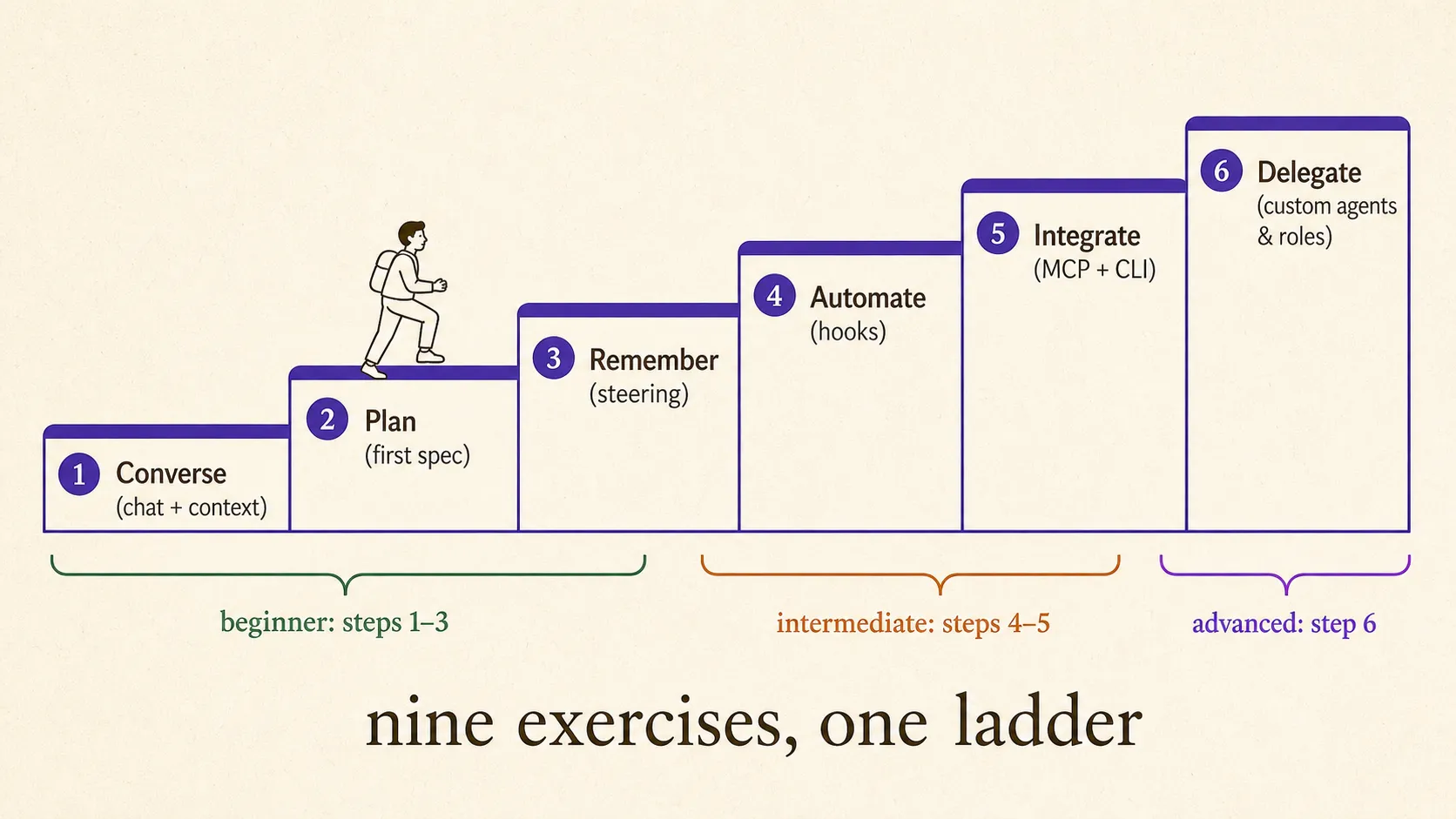
- Nine exercises ladder from first conversation to a team-ready, automated data pipeline setup.
- Beginner: chat + context, first spec, first steering file. Intermediate: hooks, MCP, CLI sessions. Advanced: restricted agents, bugfix specs, full pipelines.
- Each exercise defines the objective, a realistic scenario, checkable tasks, an observable outcome, hints, and an optional challenge.
- Do them in order; each level assumes the muscle memory of the previous one.
All chapter summaries are collected on the revision page.
Related chapters
- PracticeThe Workspace GameAn interactive game that drills Kiro's core concepts: 18 setup decisions from a 31-question pool, a repair round for misses, and a per-concept mastery map.
- PracticeQuizzesTwo interactive quizzes, beginner and advanced, with instant feedback and a full answer key with explanations.